iTech Level is reader-supported: we may earn a commission when you buy through our links, at no extra cost to you. As an Amazon Associate, iTech Level earns from qualifying purchases. Affiliate disclosure
Short answer: Almost never. On nearly every gaming laptop the GPU is soldered to the motherboard, so you can’t swap it. Your real options are an external GPU, which loses roughly 19 to 25% compared with the same card in a desktop over Thunderbolt 5, or the Framework Laptop 16, which has a replaceable graphics module. What you usually can upgrade is the RAM and SSD, and that’s worth doing first.
How we put this together: the external GPU figures are from Try Some Tech’s tests as reported by Tom’s Hardware, plus Notebookcheck and TweakTown, and the upgrade details come from ASUS, Framework and Notebookcheck, all linked below. It is not based on hands-on testing by iTech Level. See how we choose products.
Why you can’t swap a laptop GPU
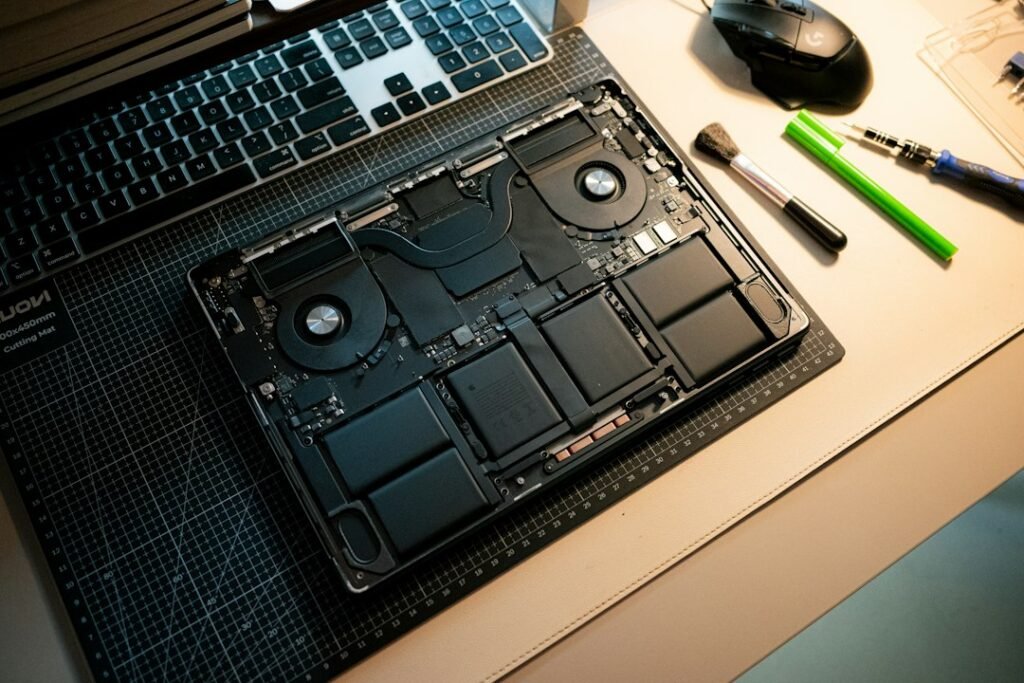
Desktop graphics cards plug into a slot. In most modern laptops the GPU is soldered to the motherboard, and replacing a chip like that takes specialist equipment. Even if you could do it, the cooling and power supply were designed around the original GPU.
Some older laptops used removable MXM graphics modules, but those are rare, and even then the laptop’s power supply and heatsink have to handle the new card. If you’re looking at a current RTX 50 laptop, assume the GPU you buy is the GPU you keep. That’s why it’s worth choosing carefully, including its wattage: our laptop GPU power database shows the same RTX 5060 can be limited to 55 W or allowed up to 115 W, and you can’t change that later either.
Option 1: an external GPU
An external GPU (eGPU) is a desktop graphics card in a box that plugs into your laptop. It works, with caveats:
| Connection | How it compares | Catch |
|---|---|---|
| Thunderbolt 5 | 19 to 25% slower than the same RTX 5070 Ti in a desktop, up to 36% in Spider-Man: Miles Morales | Needs a Thunderbolt 5 port, which not all laptops have |
| OCuLink | About 13 to 14% faster than Thunderbolt 5 | Tom’s Hardware says it’s hardly used on consumer laptops, and it can’t carry power or video |
| Thunderbolt 4 | Half the bandwidth of Thunderbolt 5 (32 vs 64 GT/s) | The port most laptops with Thunderbolt have, and the slowest of the three |
Sources: Tom's Hardware on Try Some Tech’s 12-game test, run on a desktop because no suitable laptop has both ports. Notebookcheck also found worse 1% lows over Thunderbolt 5, which can make games feel less smooth. And TweakTown reports a Gigabyte RTX 5090 enclosure running 27% slower than a desktop RTX 5090.
Add the price of the enclosure and a desktop card, and an eGPU rarely beats simply selling the laptop and buying a faster one. It makes the most sense if you already have the card, have a laptop you otherwise love, and game at one desk.
Option 2: Framework Laptop 16
The one mainstream exception is the Framework Laptop 16. Its graphics module slides out from the back and can be swapped in under five minutes with the included tool. Framework currently offers an RTX 5070 Laptop GPU or an AMD Radeon RX 7700S. That’s the only current laptop we know of where a GPU upgrade is a planned feature, so if upgrades are your priority, it’s the one to look at. Whether future modules arrive depends on Framework.
What you can upgrade instead
- RAM. If you have 16GB or a single stick, this is the best-value upgrade, especially on an 8GB GPU where games overflow into system memory. See is 16GB of RAM enough? ASUS says most ROG Strix laptops need only a screwdriver. Check first: Zephyrus models from 2024 on have soldered memory.
- SSD. It won’t raise frame rates, but it stops you running out of space. Many models have a spare slot, including the Lenovo LOQ 15 and Gigabyte Aorus Elite 16.
- Settings. DLSS and lower settings often gain more than a small hardware upgrade. Notebookcheck says laptop GPUs are usually held back by speed rather than memory, and that dropping to 1080p usually fixes VRAM problems (is 8GB of VRAM enough?).
- A MUX switch. If your laptop has a MUX switch, turn on the discrete GPU mode so the GPU drives the screen directly.
When it’s time for a new laptop
If lowered settings no longer give you a smooth game, and your RAM is already at 16GB or more in two sticks, you’ve reached the GPU’s limit. Our best RTX 5060 laptops, RTX 5070 laptops and RTX 5070 Ti and 5080 laptops guides cover the current options, with the wattage of each.
Check the Lenovo LOQ 15 (RTX 5060) on Amazon →
Our verdict
You can’t upgrade the GPU inside a typical gaming laptop. An external GPU is possible but loses a good chunk of performance and needs the right port, and the Framework Laptop 16 is the rare model designed for swaps. For everyone else, upgrade the RAM and SSD, tune your settings, and buy the strongest GPU and highest wattage you can afford the next time around.
Frequently asked questions
Can you upgrade the GPU in a gaming laptop?
Almost never. The GPU is soldered to the motherboard on nearly every gaming laptop. The Framework Laptop 16 is the main exception, with a swappable graphics module.
Are external GPUs worth it for laptops?
Only in specific cases. Over Thunderbolt 5, an RTX 5070 Ti ran 19 to 25% slower than in a desktop in Try Some Tech’s tests. It makes sense mainly if you already own the card and game at one desk.
Does my laptop support an external GPU?
It needs a Thunderbolt port, ideally Thunderbolt 5, or an OCuLink port, which is rare. Check your laptop’s spec sheet. A regular USB-C port without Thunderbolt or USB4 won’t do.
What can I upgrade on a gaming laptop?
Usually the RAM and SSD. Many models have two RAM slots and a spare SSD slot, but some thin laptops, including ASUS Zephyrus models from 2024 on, have soldered RAM.
Is it worth replacing a soldered laptop GPU?
No. It takes specialist equipment, and the laptop’s cooling and power supply are designed around the original chip. Put that money toward a new laptop instead.