iTech Level is reader-supported: we may earn a commission when you buy through our links, at no extra cost to you. As an Amazon Associate, iTech Level earns from qualifying purchases. Affiliate disclosure
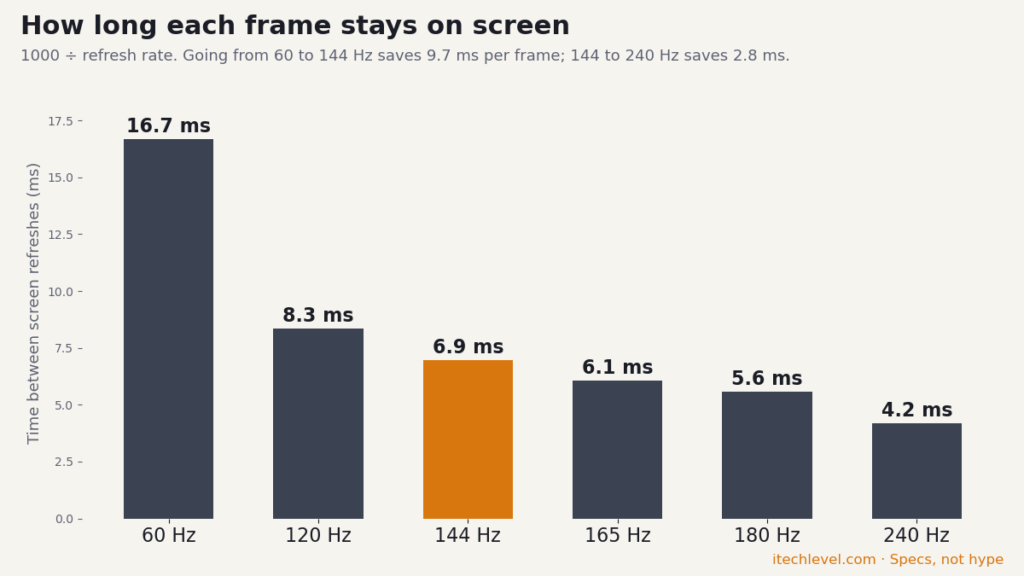
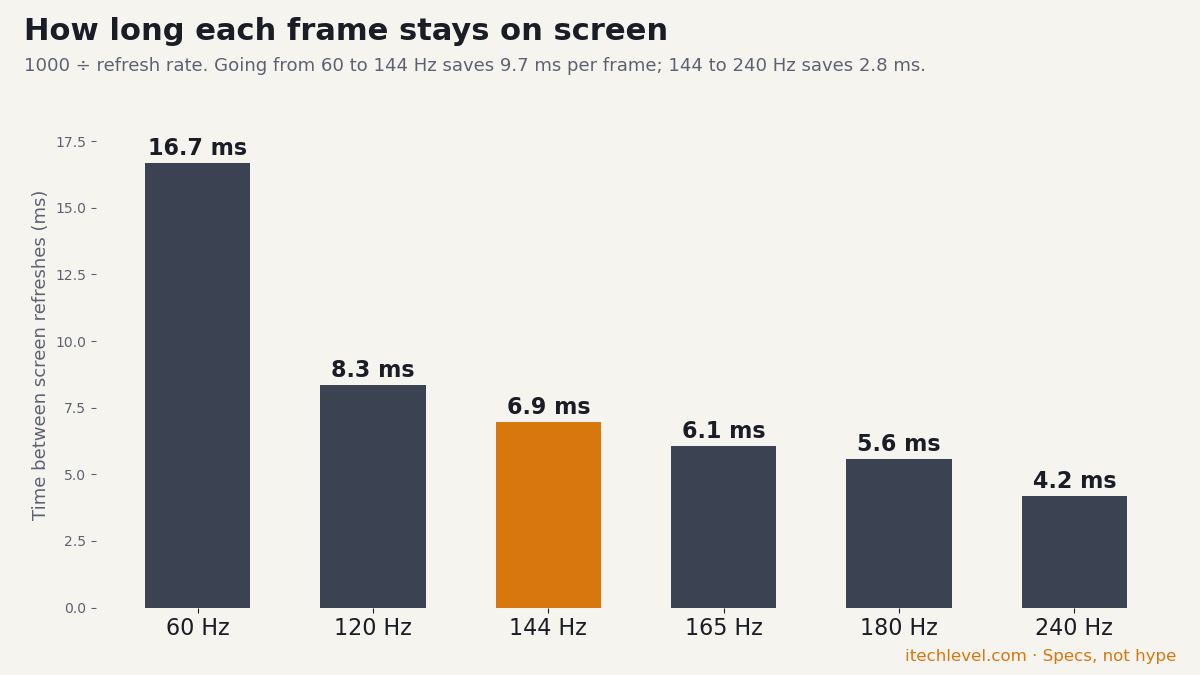
Short answer: yes, a 144Hz screen is worth it on a gaming laptop: each frame stays on screen for 6.9 ms instead of 16.7 ms at 60Hz, and that’s the jump you notice most. But in 2026, 144Hz is the floor, not a feature. Most budget gaming laptops now ship 165Hz or 180Hz panels, and you only see the benefit if your GPU can actually push 144 frames per second. A 240Hz screen is worth paying for only if you play competitive shooters on a full-power RTX 5070 or better.
How we put this together: frame times are simple math, screen specs come from the makers, and GPU power comes from our laptop GPU power database. It is not based on hands-on testing by iTech Level. See how we choose products.
144Hz vs 165Hz vs 240Hz at a glance
Frame time is simply 1000 divided by the refresh rate. The laptops listed are ones we cover, with the screens their makers and our guides list for them.
| Refresh rate | Frame time | Where you’ll find it in 2026 | Best for |
|---|---|---|---|
| 60 Hz | 16.7 ms | Office and budget non-gaming laptops | Everyday work |
| 120 Hz | 8.3 ms | OLED thin-and-lights: ASUS Zephyrus G14 (3K OLED), HP Omen Transcend 14 | Creators and travel gaming |
| 144 Hz | 6.9 ms | Base screens on the MSI Katana and Cyborg 15 (1920×1080) | The gaming minimum |
| 165 Hz | 6.1 ms | Acer Nitro V 15 (RTX 5050), many RTX 5060 and 5070 laptops (1080p to 1600p) | Most buyers |
| 180 Hz | 5.6 ms | Acer Nitro V 16S AI (1200p or 1600p) | Most buyers |
| 240 Hz | 4.2 ms | Lenovo Legion Pro 5i Gen 10 (IPS), Acer Predator Helios Neo 16 AI, ASUS ROG Strix SCAR 16 (Mini-LED) | Competitive shooters |
What a 144Hz screen actually changes
A 60Hz screen redraws the image 60 times a second; a 144Hz screen does it 144 times. In games, that means smoother camera turns, easier tracking of moving targets and less blur when you flick the mouse. Outside games, scrolling and moving windows also look smoother, though that alone isn’t worth paying for.
Three things decide whether you actually get that smoothness:
- Your frame rate. A 144Hz screen showing 70 fps looks like 70 fps. The GPU has to keep up, which is why GPU power matters more than the number on the screen (next section).
- G-SYNC or adaptive sync. When the frame rate drops below the refresh rate, G-SYNC keeps motion smooth without tearing. Many of our picks list it, for example the Legion Pro 5i Gen 10’s 240Hz panels.
- A MUX switch or Advanced Optimus. It sends frames straight from the NVIDIA GPU to the screen, which adds frames in many games. NVIDIA cites 11% to 27% more frames from Advanced Optimus in its own figures. See our gaming laptops with a MUX switch.
The GPU decides whether you’ll see 144 fps
The same GPU name can run at very different power levels depending on the laptop, and power is what turns into frames. Across 238 laptop configurations in our laptop GPU power database (maker spec sheets from Acer, Lenovo, MSI, ASUS, Gigabyte and Razer), this is the maximum GPU power each RTX 50 chip gets:
| GPU | Max GPU power (lowest to highest laptop) | Configurations |
|---|---|---|
| RTX 5050 | 45–115 W | 44 |
| RTX 5060 | 55–115 W | 64 |
| RTX 5070 | 60–115 W | 63 |
| RTX 5070 Ti | 115–140 W | 27 |
| RTX 5080 | 115–175 W | 24 |
| RTX 5090 | 130–175 W | 16 |
An RTX 5060 at 55 W and one at 115 W are not the same laptop. For high settings at 144Hz or more in newer games, look for an RTX 5060 or RTX 5070 running at the full 115 W; an RTX 5050 suits lighter games and esports titles at lower settings. Our best RTX 5060 laptops and best RTX 5070 laptops guides list the GPU power of every pick.
Which refresh rate should you buy?
- Casual and story games: 144Hz or 165Hz is plenty. Spend the money on GPU power instead. Start with our cheapest gaming laptops worth buying.
- Most gamers: 165–180Hz with an RTX 5060 or 5070 at full power. This is the best value in 2026, and it’s what most of our gaming laptops under $1,200 offer.
- Competitive shooters (ranked play): 240Hz with a full-power RTX 5070 or better. These mostly cost $2,000 or more; see our Marvel Rivals laptop picks and the best RTX 5070 Ti and 5080 laptops.
- Creators who also game: a 120Hz OLED (like the Zephyrus G14’s 3K panel) gives you accurate color with smooth motion; 120Hz is a fair trade for the picture quality. See our laptops for video editing.
How to check and set your laptop’s refresh rate
- Open Settings → System → Display → Advanced display (Windows 11).
- Under Choose a refresh rate, pick the highest value. Some laptops ship set to 60Hz.
- If you see Dynamic, Windows drops to 60Hz for desktop work and goes up to full speed in games and scrolling, which saves battery (Microsoft explains the setting).
- Plug in when gaming: many laptops lower GPU power on battery, so you won’t reach 144 fps unplugged.
Frequently asked questions
Is 144Hz good for a gaming laptop?
Yes. 144Hz shows a new frame every 6.9 ms instead of every 16.7 ms at 60Hz, which makes motion and aiming look much smoother. In 2026 it's the entry level: most budget gaming laptops now ship 165Hz or 180Hz screens, so treat 144Hz as the minimum, not a premium feature.
Is 165Hz better than 144Hz?
Slightly. 165Hz cuts the frame time from 6.9 ms to 6.1 ms, a difference most people can't see. Don't pay extra for 165Hz over 144Hz; pick the laptop with the better GPU power and screen quality instead.
Is 240Hz worth it on a laptop?
Only for competitive shooters, and only with a GPU that can reach 200+ fps in your games. The frame time drops from 6.9 ms (144Hz) to 4.2 ms (240Hz), but 240Hz laptops mostly cost $2,000 or more, so most players get more from a stronger GPU at 165Hz.
Does a 144Hz screen use more battery?
Yes, refreshing the panel more often uses more power. Windows 11's Dynamic refresh rate option drops the screen to 60Hz for everyday work on laptops that support it, and you can set 60Hz manually when you're on battery.
How do I check my laptop's refresh rate?
In Windows 11, open Settings, System, Display, Advanced display, and look at 'Choose a refresh rate'. Pick the highest value listed; some laptops ship set to 60Hz.